~ 2 min
9/11/2025
Import Ozon Sales Funnel
Ozon provides sales funnel data automatically via API only with a Premium Plus subscription. If you have at least a Premium Lite subscription, you can export funnel data from your Ozon seller dashboard and manually upload it to our service to use it for analysis alongside other product metrics.
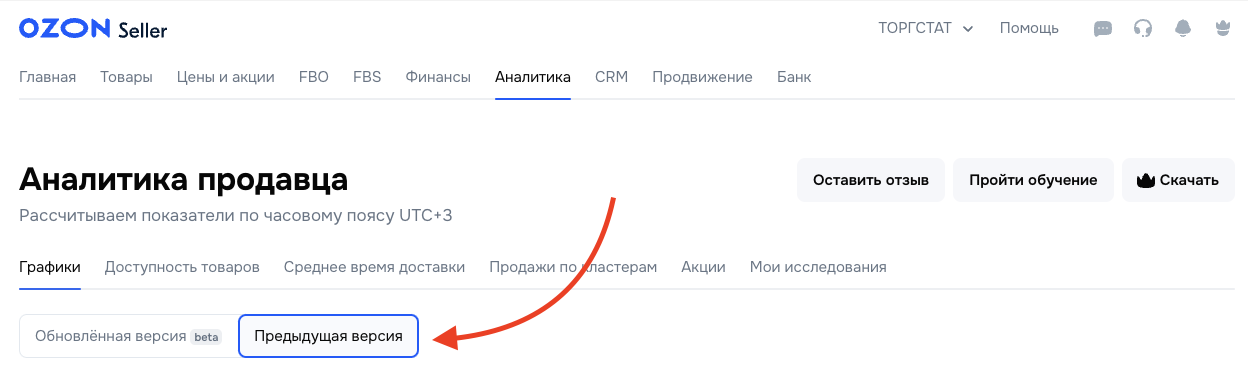
1. Go to Analytics – Charts in your Ozon seller dashboard
Follow this link to open the Analytics – Charts (previous version) section in your Ozon seller dashboard.
2. Configure metrics
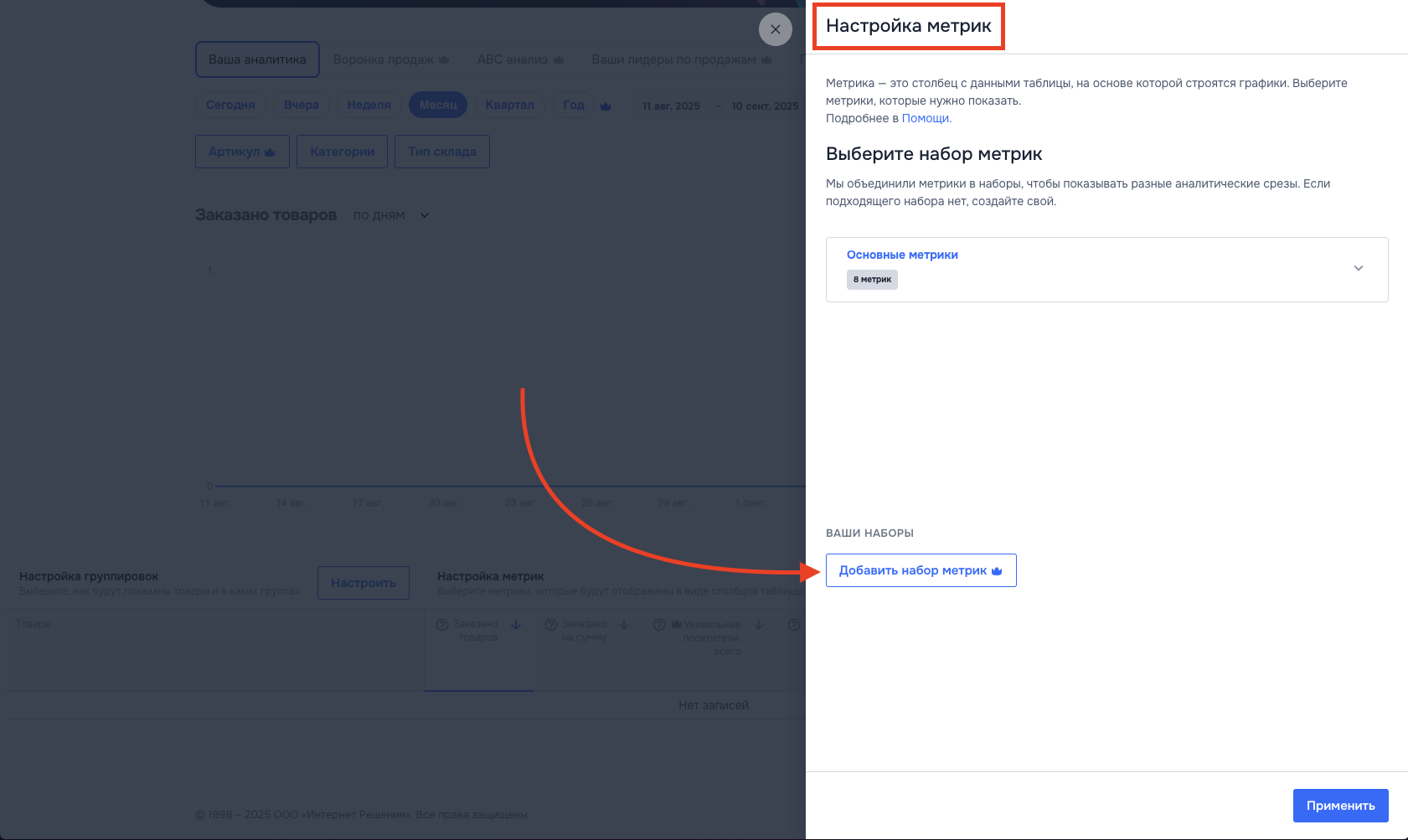
In the "Metric settings" block above the table, click the "Configure" button.

3. Add a metric set
In the window that opens, click "Add metric set".
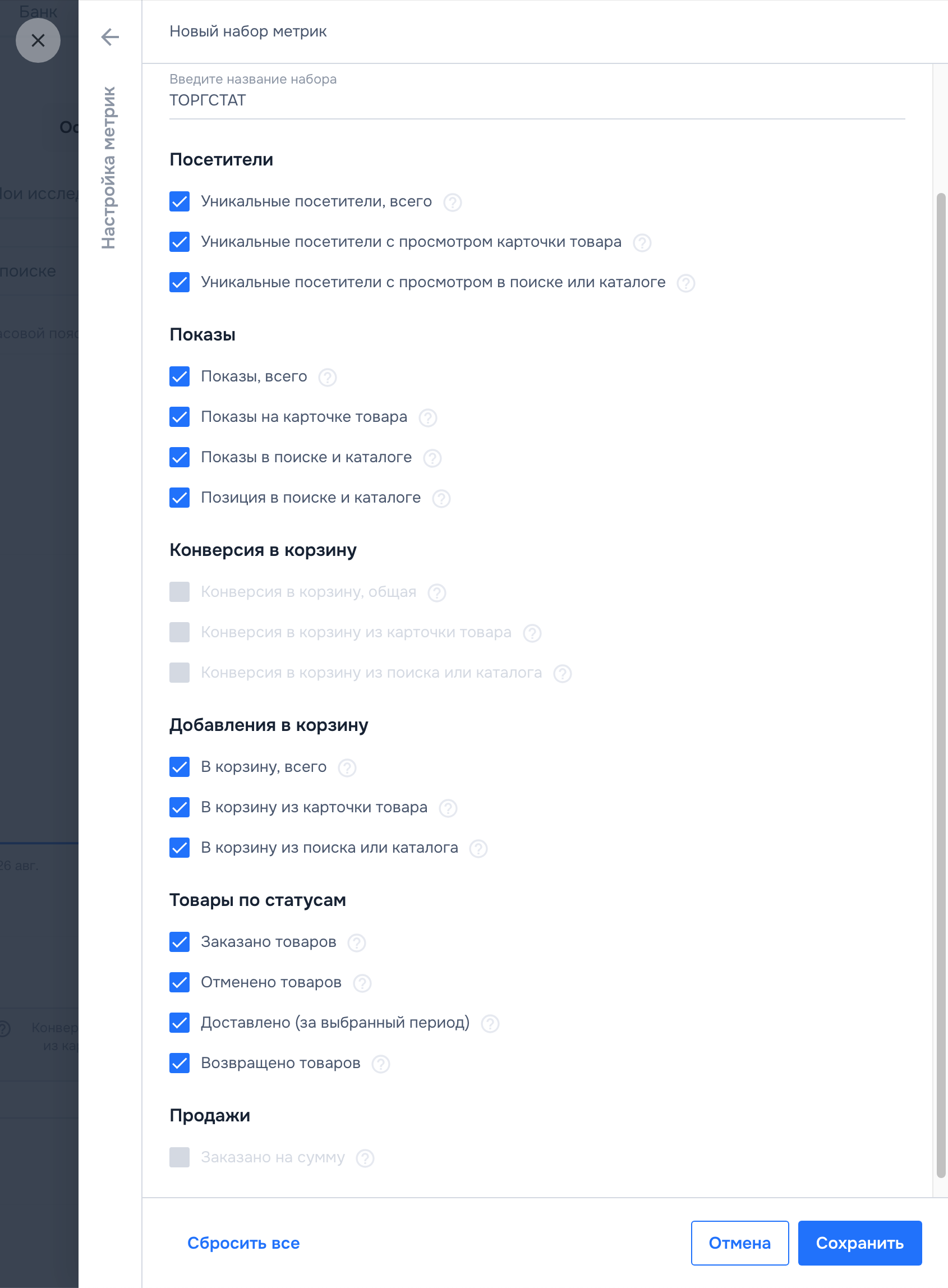
4. Metric set – Torgstat
Enter the set name – "Torgstat"
Check all boxes in the Visitors, Impressions, Add to cart, and Products by status blocks.
Click Save.
Do not check the boxes in the Cart conversion rate and Sales blocks – we calculate these metrics ourselves.
5. Apply the set – Torgstat
On the "Your sets" screen, click on "Torgstat" and then click "Apply".
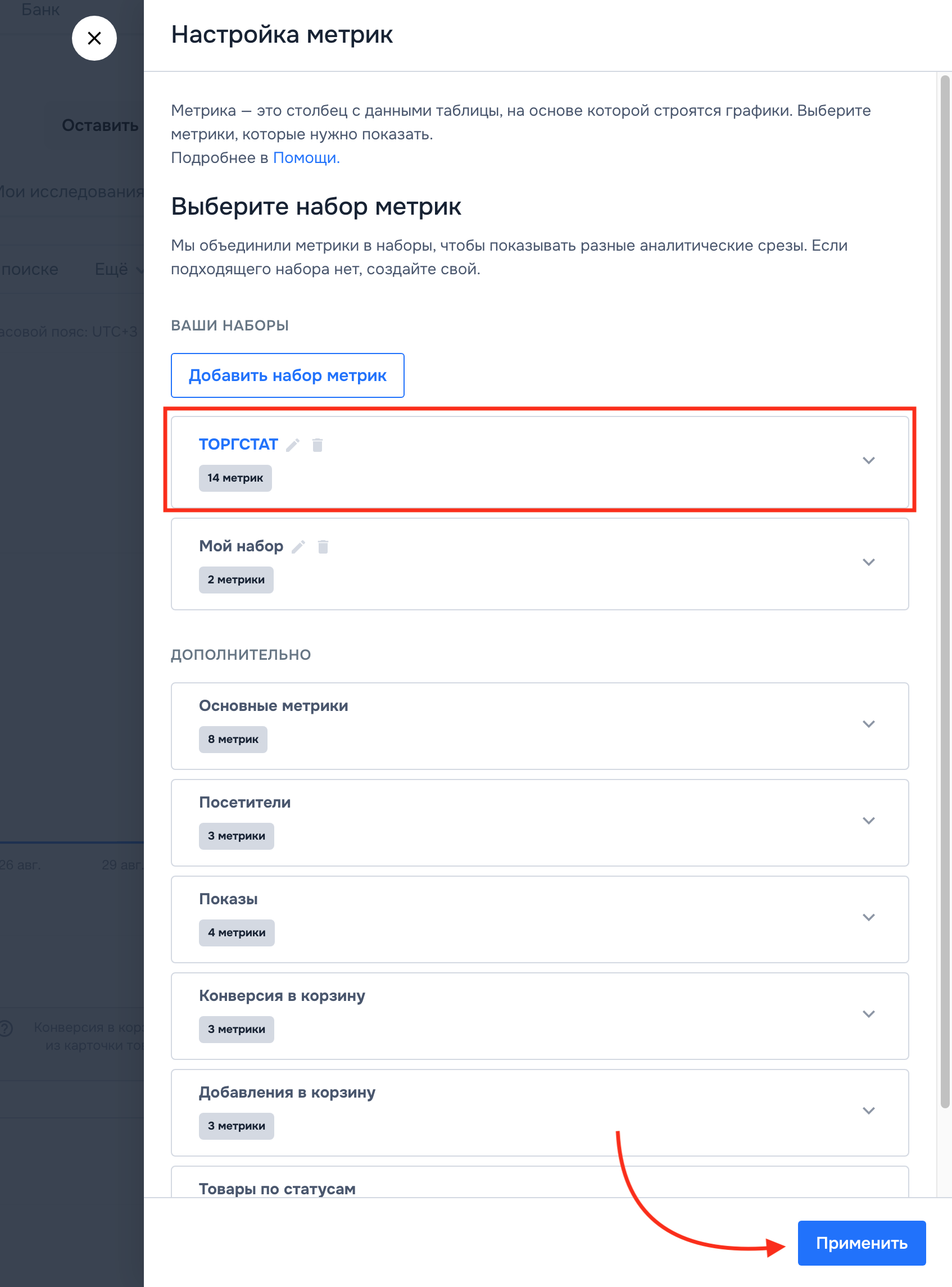
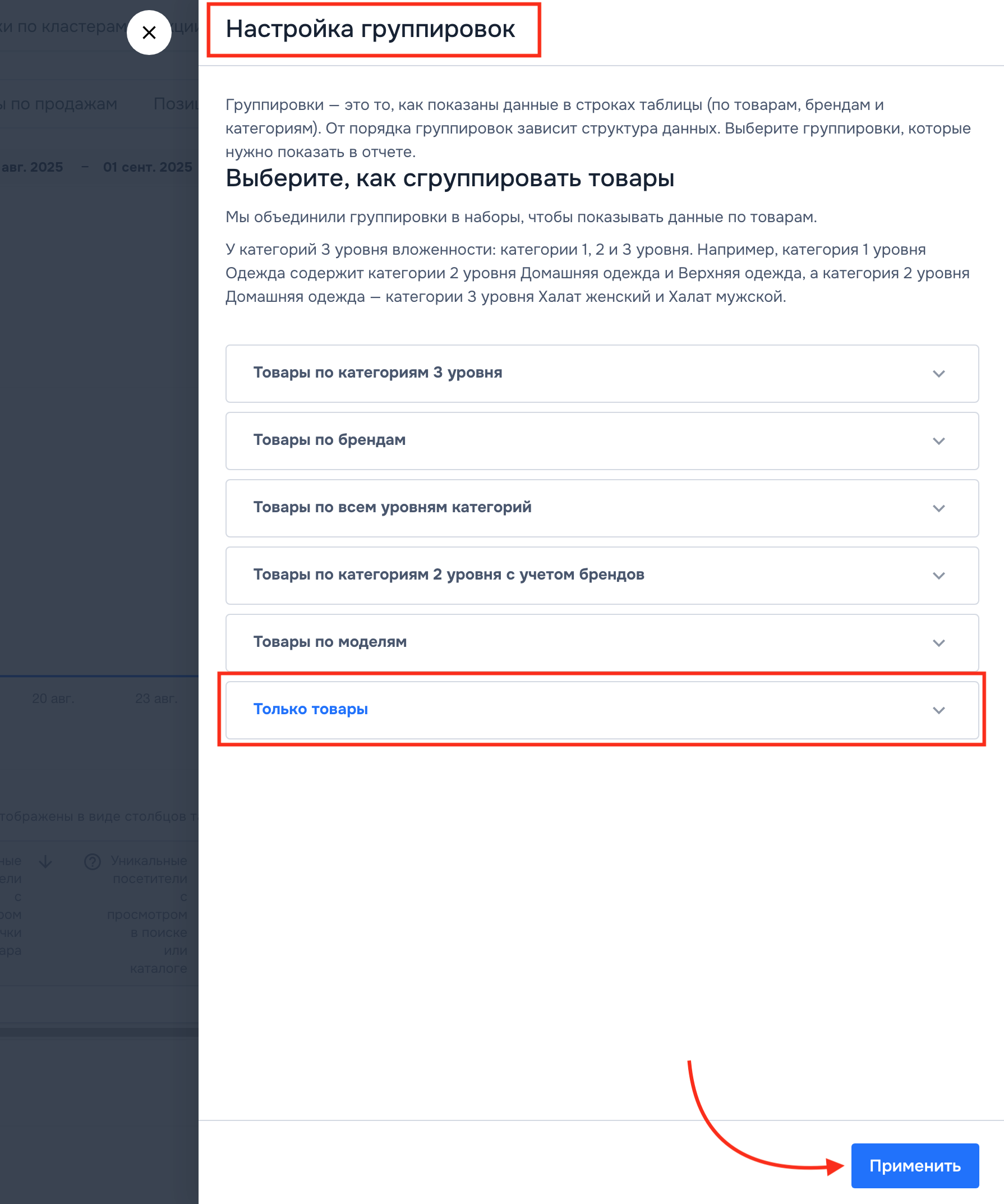
6. Check the grouping settings
In the "Grouping settings" block above the table, click the "Configure" button – make sure "Products only" is selected.
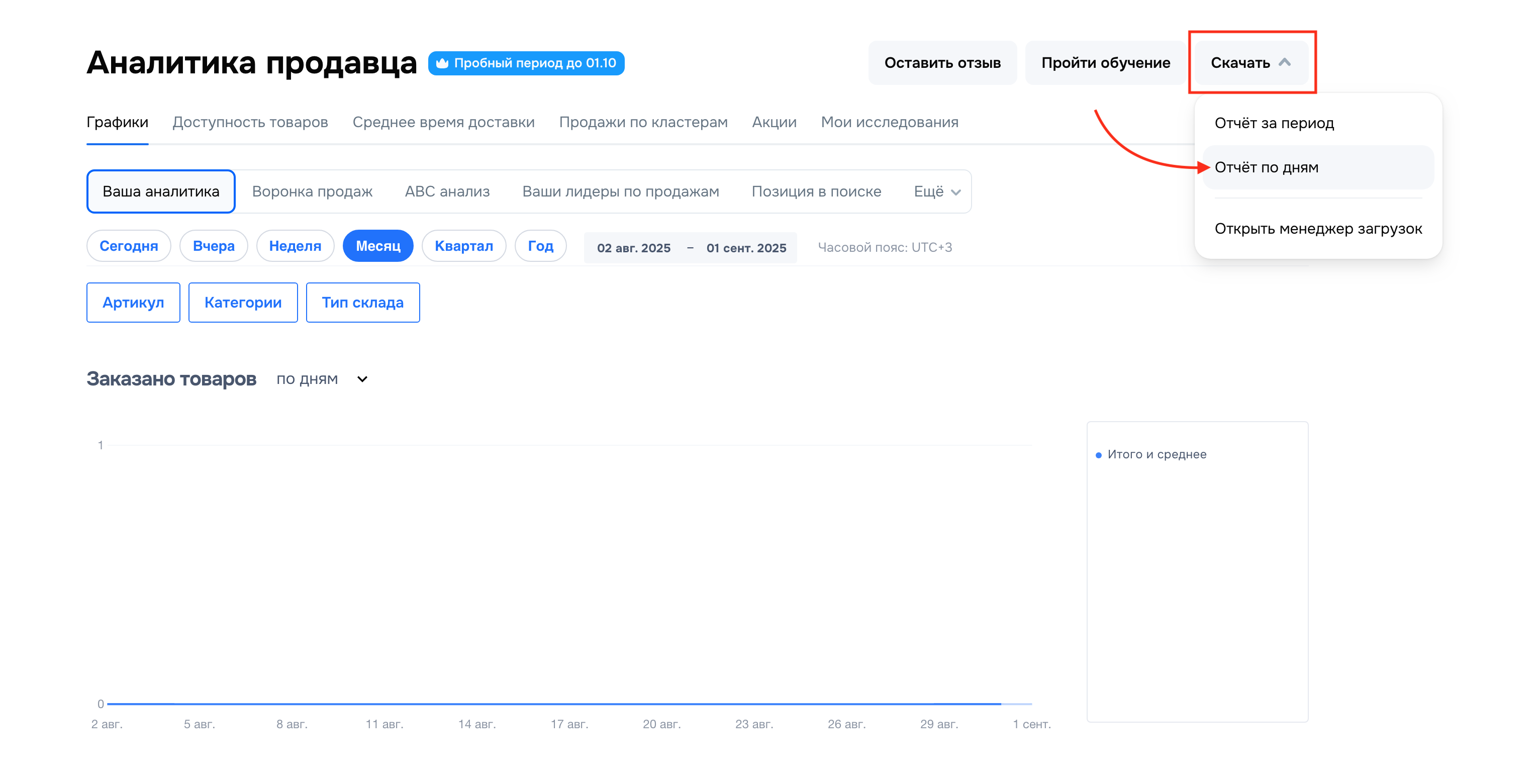
7. Download – by day
On the main screen, click "Download" – "By day".
8. Go to Torgstat in the Product Economics section
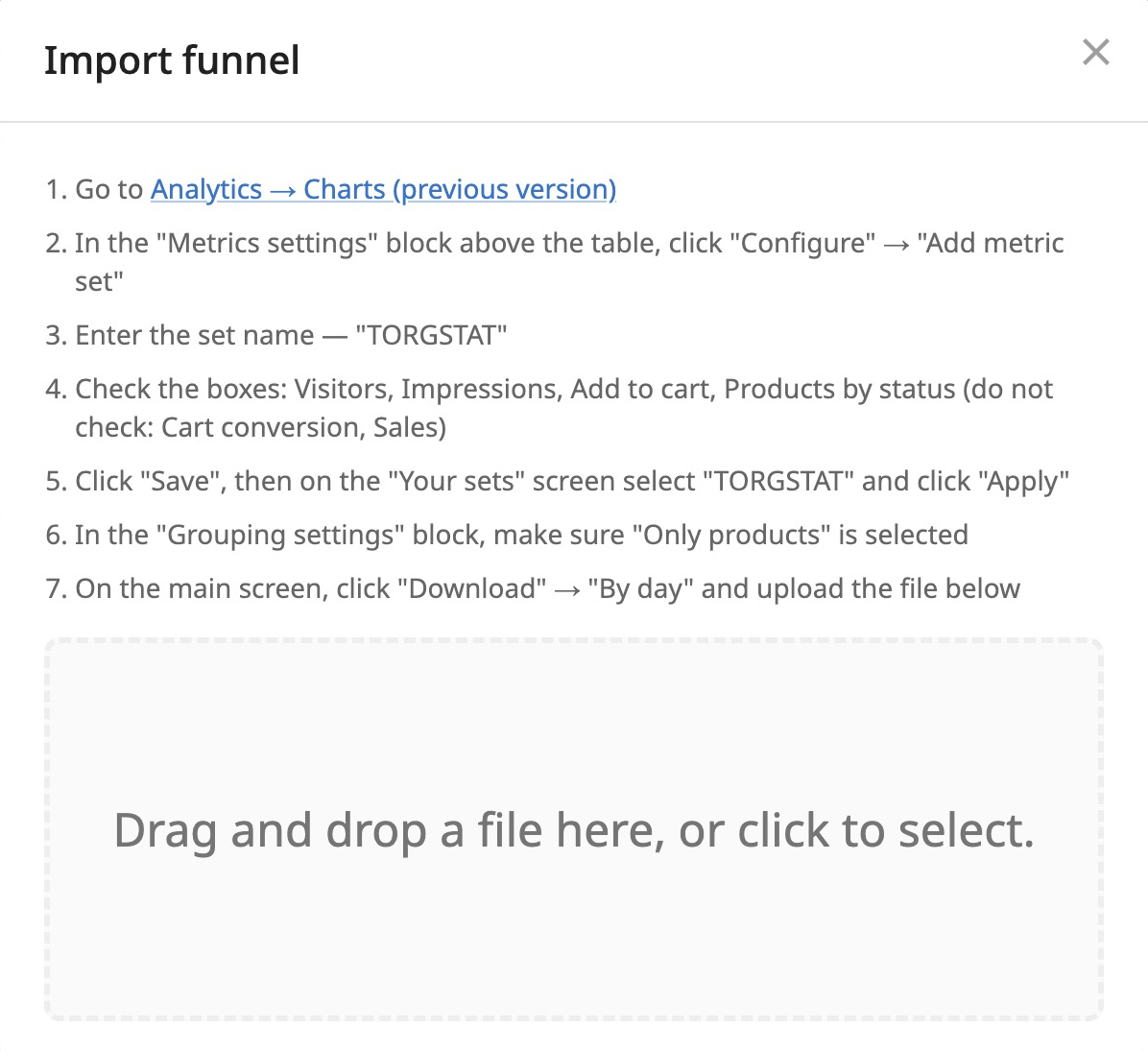
Go to the "My Store" – "Summary" – "Product Economics" section for the Ozon marketplace. Click "Import funnel" above the table – on the right.

9. Upload the received file
Upload the file you previously downloaded from your Ozon seller dashboard into the import field. Wait for the upload result.