~ 2 min
7/16/2026
How to update the token for connecting Wildberries
If a token is about to expire, or you need to change access categories or the token type — do this in your Wildberries seller dashboard. If you previously set up your store connection in the Torgstat analytics service — update the token in the existing connection. Here’s how to do it so all your data and settings are preserved.
How to update the token in your Wildberries seller dashboard
To update the token, open your Wildberries seller dashboard:
Go to the "API Integrations" section in the Profile menu
Find the token you need to update
Click "Duplicate"
A window for creating a new token with the same settings will open. If you need to add new access categories — select them at this step. Make sure the following access categories are selected: Content, Finances, Prices and discounts, Marketplace, Analytics, Supplies, Statistics, and Promotion.
Confirm creation and copy the new token.
How to update the token in Torgstat
To avoid losing entered cost price data, various settings, tags, and categories — do not create a new connection in Torgstat. Update the token in the connection you are already using.
Update the token in the existing connection of your store in Torgstat.
Go to the My Store — API Connections section.
Find the connection for which you need to update the token.
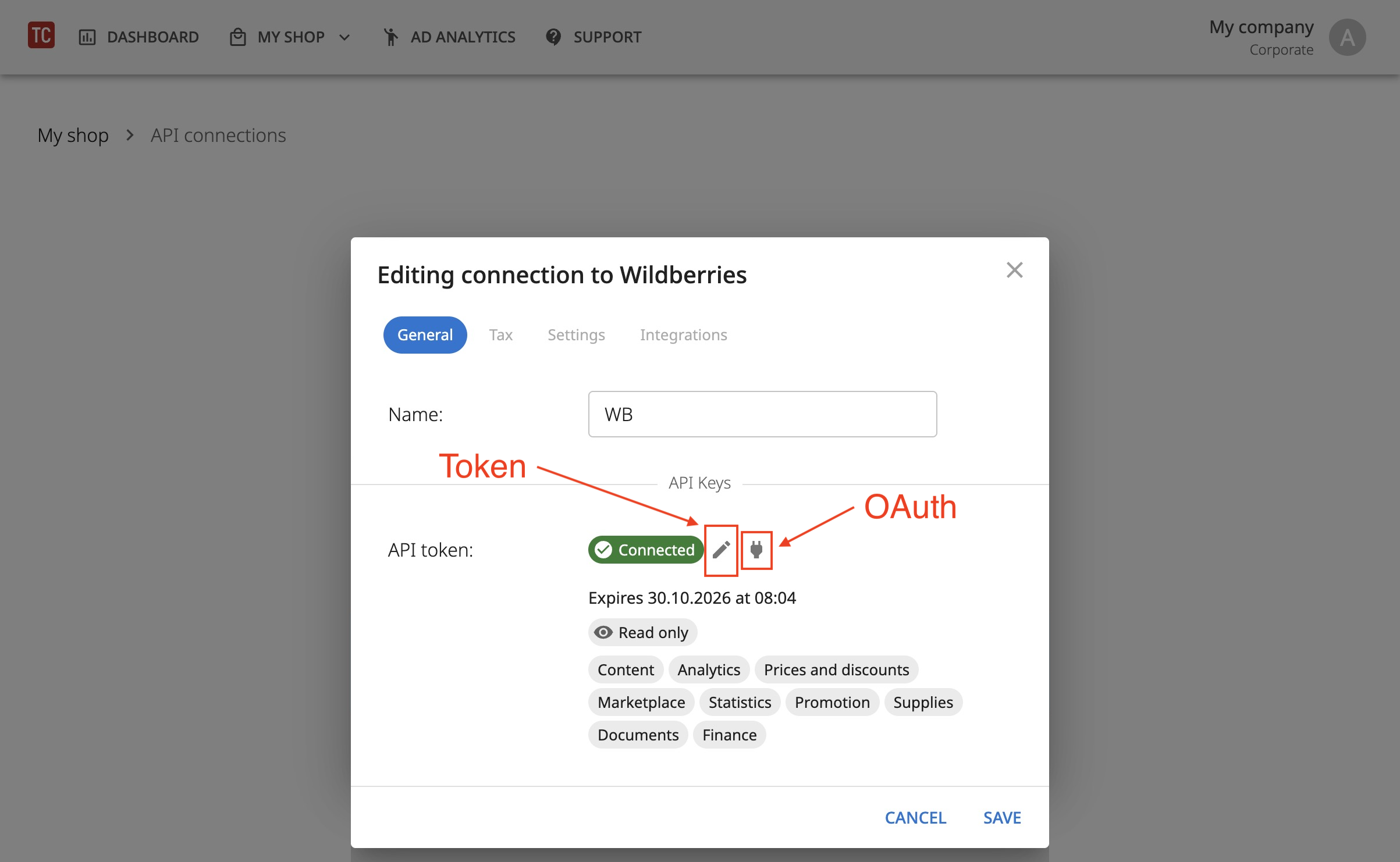
On the card next to the connection name, click the three dots – Edit.
To update the Service token, click the "pencil" icon and paste the new API token. If you want to update the connection via OAuth – click the "plug" icon. Save the changes.