~ 3 min
8/12/2025
How to connect your Wildberries seller dashboard?
Torgstat is an authorized Wildberries service and is available in the business solutions catalog. In this guide, we will explain how to set up a Torgstat connection to your Wildberries seller dashboard.
Difference between connecting via Service Token and OAuth 2.0
You can connect Torgstat via a Service Token manually or via OAuth 2.0. The OAuth 2.0 connection is permanent and does not require token renewal. However, connecting via a Service Token provides a more stable connection. You can choose which method to use to connect your Wildberries seller dashboard to the Torgstat service.
Service Token:
Has a limited validity period of 180 days, after which it needs to be renewed
More secure – allows you to set up read-only access
Technically provides a more stable connection to the WB API
OAuth 2.0:
Issued indefinitely
Has read and write access
May be technically less stable due to implementation specifics
Create a Service Token in your WB seller dashboard
Open your Wildberries seller dashboard
Go to the "API Integrations" section in the Profile menu
Click "Create token"
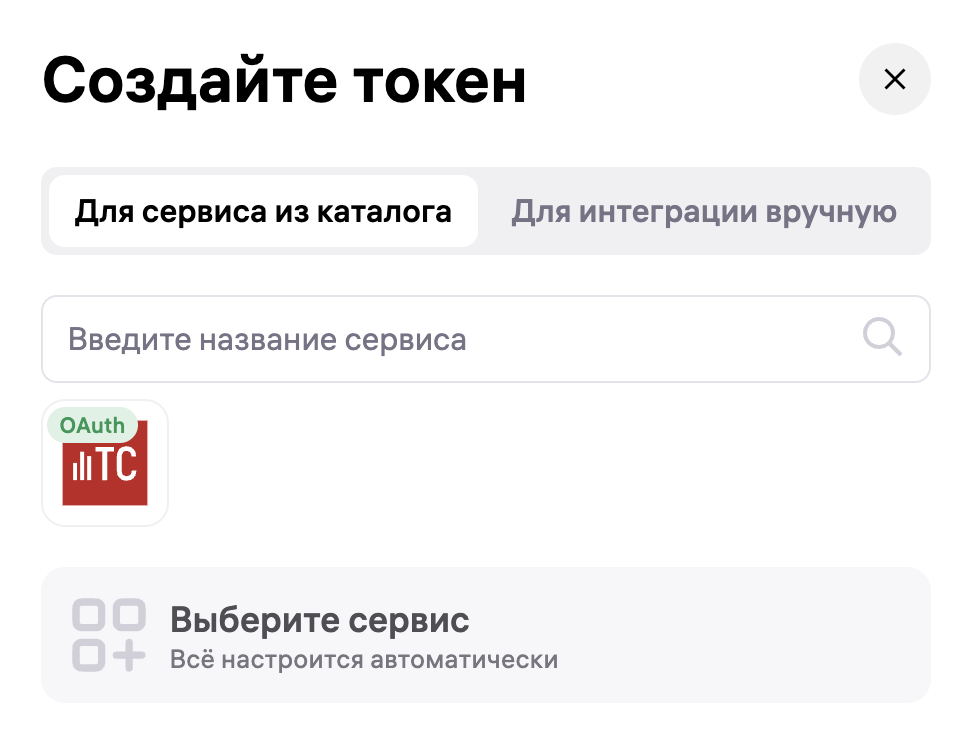
Enter "Torgstat" in the service search bar from the catalog
Click on the "Torgstat" service icon to continue creating the token
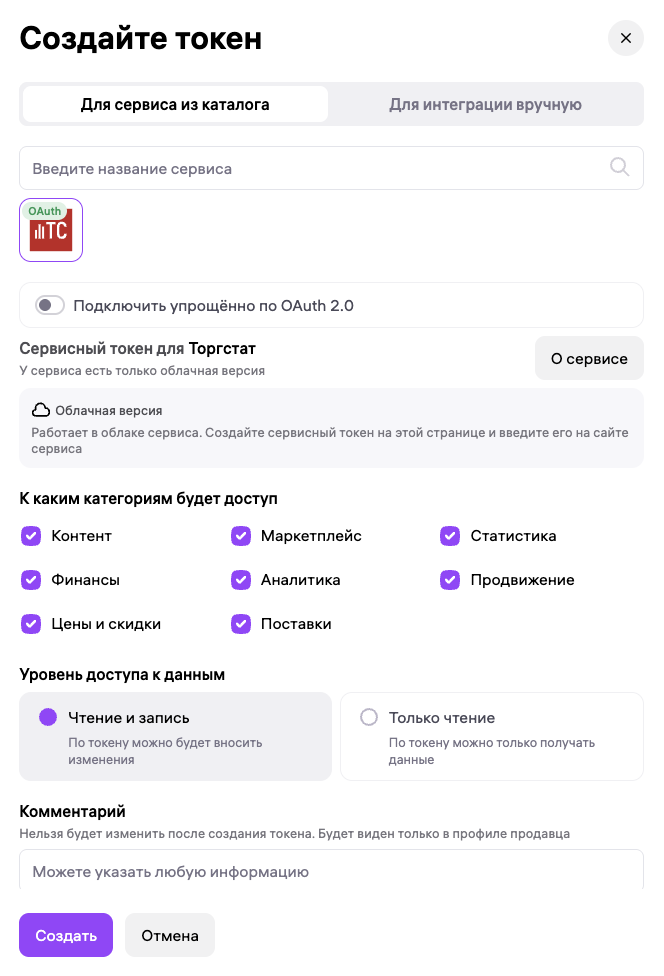
The required categories are already selected – do not change them. For our service to work, a token with read-only rights is sufficient; you can select this option. Then click – Create.
Copy the generated token
Set up the connection in Torgstat
Open Torgstat
Go to the My Store – API Connections section
Click "New connection" and select Wildberries
Make sure the "Add service token" option is selected and click "Connect"
Enter a connection name
Paste the previously generated API token
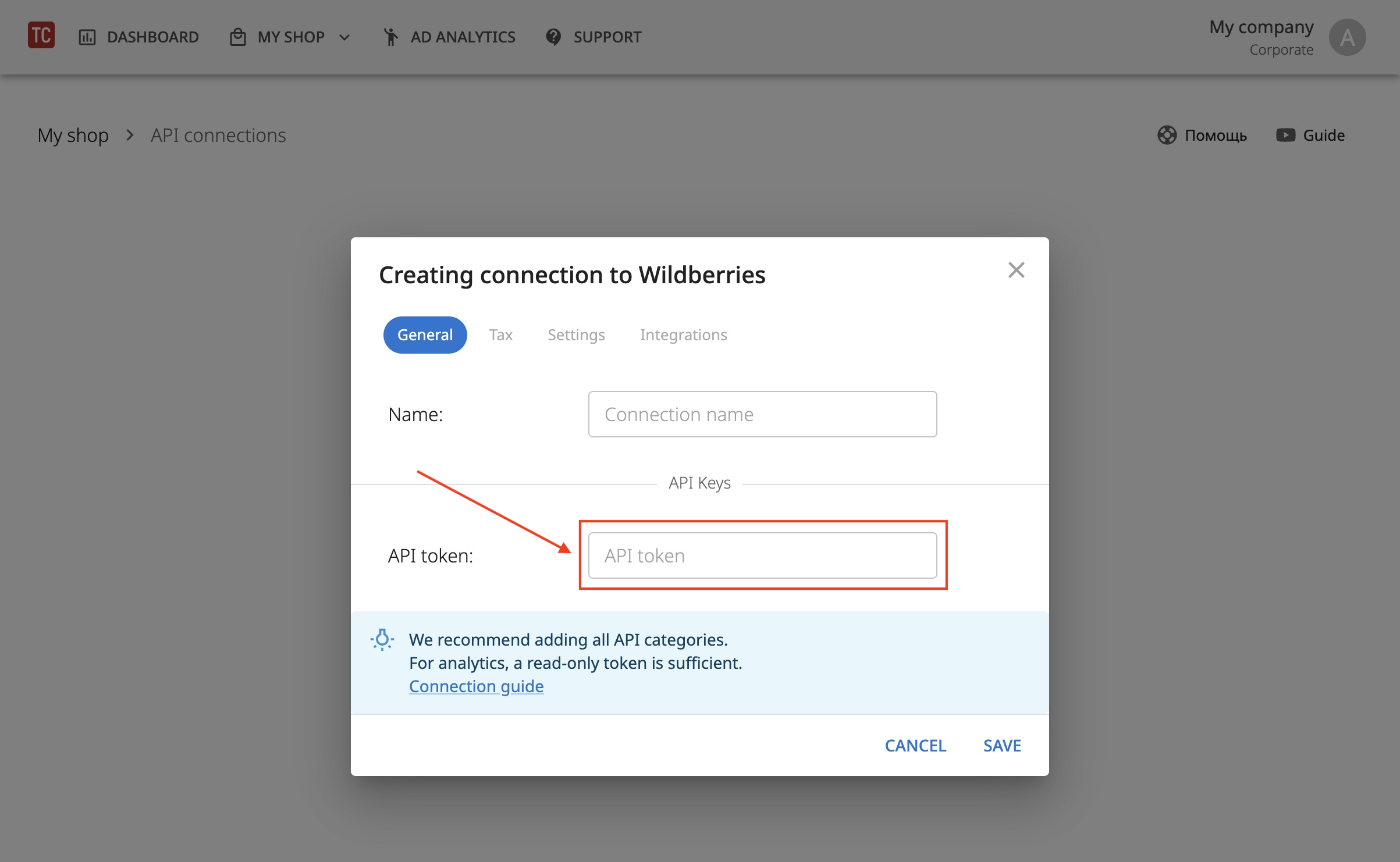
Make sure the token has been successfully verified:
The "Connected" icon is green
The token validity period is displayed
The selected access categories from the WB API are displayed
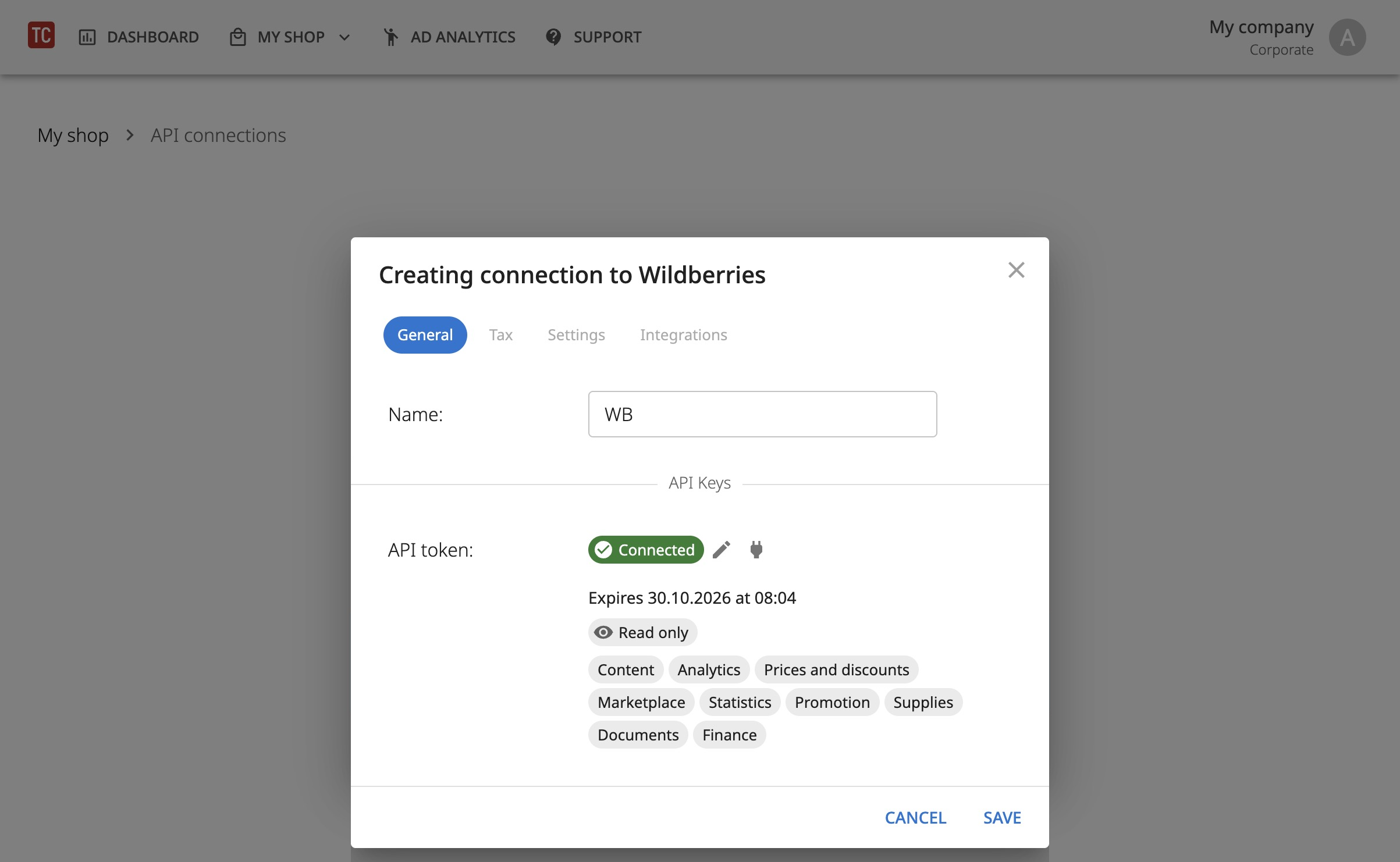
Save the connection
Connection via OAuth 2.0
Before setting up OAuth 2.0, make sure you are logged into the Wildberries seller dashboard you intend to connect.
Open Torgstat
Go to the My Store – API Connections section
Click "New connection" and select Wildberries
Select "Connect via OAuth 2.0" and click "Connect"
A Wildberries seller dashboard page will open asking for permission to connect the "Torgstat" service
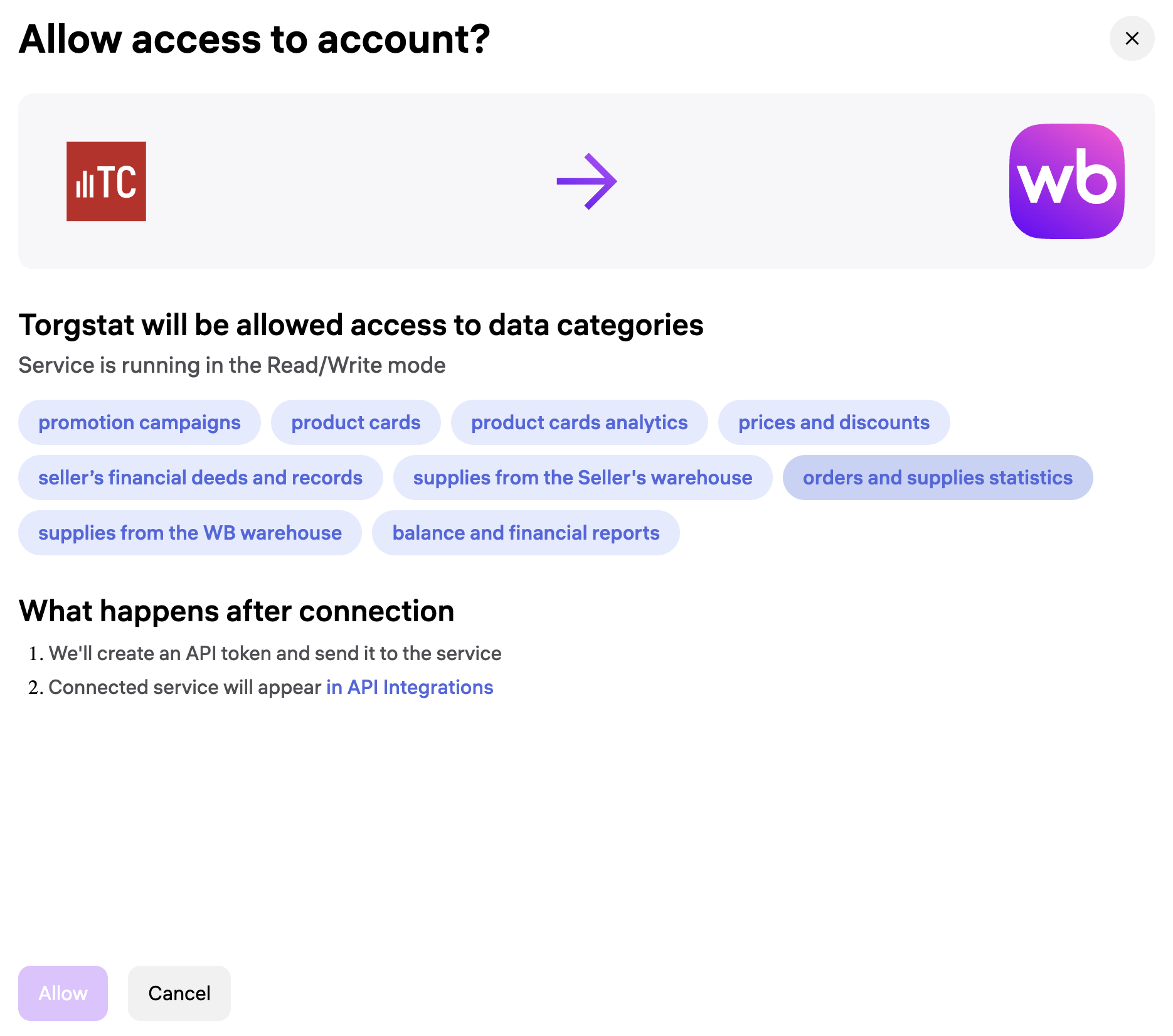
Click Allow
How to renew a token?
To renew a token – do not create a new connection, update the token in the existing one. This is important so that data continues to load correctly for your store.
Go to the My Store – API Connections section.
Find the connection for which you need to renew the token.
On the card next to the connection name, click the three dots – Edit.
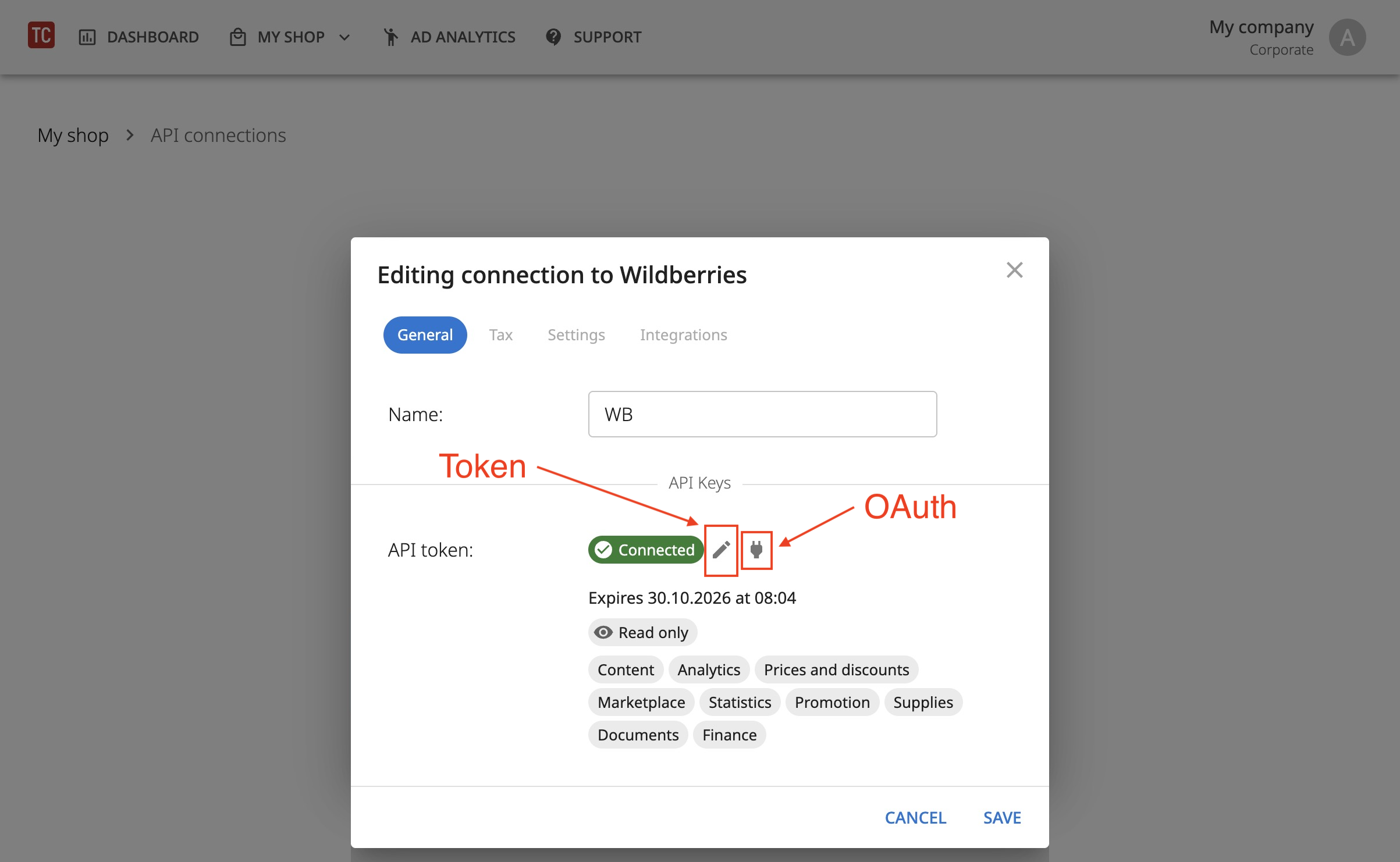
To renew a Service Token, click the "pencil" icon and paste the new API token. If you want to update the connection via OAuth – click the "fork" icon. Save the changes.