
~ 2 min
11/5/2025
Access Management
How to grant access to your colleagues and what access configuration options are available in our service.
How to grant access
An employee does not need to register in our service in advance. After you add their Email, they can immediately log into your seller dashboard from the main page of our service at https://torgstat.ru/ by clicking the "Log in" button.
If the employee is already registered in our service, after access is granted, they need to switch to your seller dashboard. To do this, refresh the page, click Profile Menu – "Switch company", and select your seller dashboard.
To add an employee:
Click Profile Menu – it is located in the upper right corner in the circle next to the seller dashboard name.
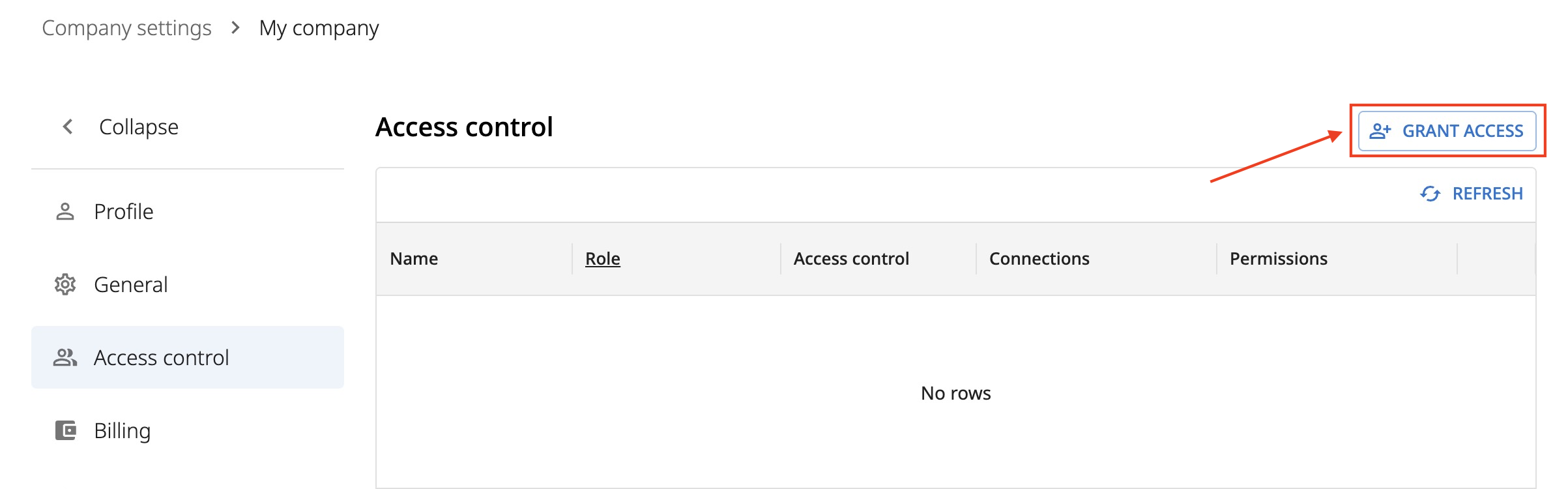
Open the "Access Management" section.
Click "Grant access".
Enter the Email and Employee Name.
Click "Add".
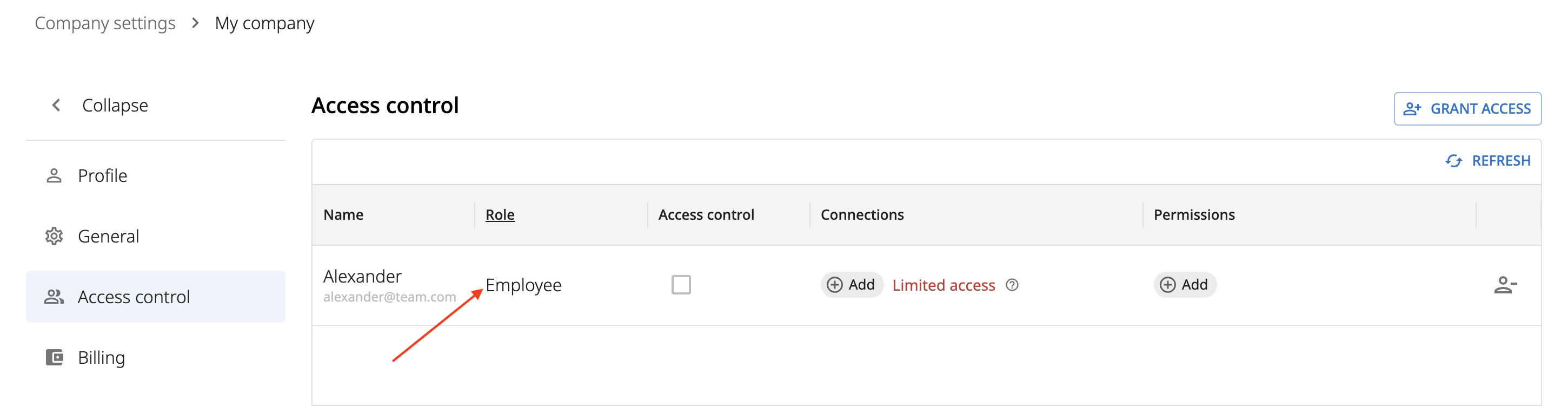
By default, a new user receives the "Employee" role. This role has limited access to your seller dashboard and can only see the Connections and Reports you specify. The service also has an "Administrator" role with full access to everything. To change the role, double-click the cell with the role name next to the employee's name.
Configuring the "Employee" role
For the "Employee" role, you must select the Connections and Reports they will have access to.
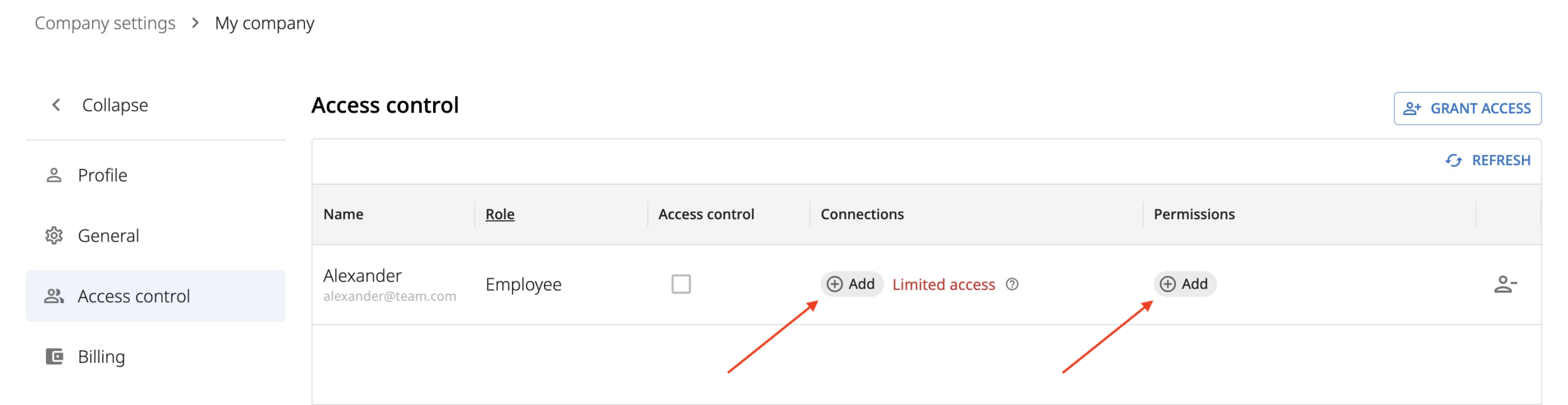
Click "Add" in the "Connections" column and select the Connections you want to grant access to.
To revoke access to a Connection, click the cross to the right of the Connection name.
Next, click "Add" in the "Access Rights" column. Here you can select which reports will be visible to the employee and grant rights to configure connections and enter data in the service.
Available report viewing rights:
Dashboard
Product Economics
Financial Reports
Ad Analytics
Orders
ABC Analysis
Dynamics
Plan-Fact
Geography
Products
Warehouse (includes supplies)
P&L
Cash Flow Statement
Available data modification rights:
Connection configuration (creation, modification, tax setup, and other settings)
Cost price management
Plan management
Tag management
Self-buyout management
External operations management
Report management (manual upload, re-upload from API, reconciliation upload)
To revoke access to a report or rights to configure and enter data, click the cross to the right of the name.
How to revoke access
In the "Access Management" section, click the "Delete user" icon at the end of the row next to the Employee's name.