
~ 4 min
6/3/2025
How to set up tax, what amounts do we calculate from? What about VAT?
Torgstat supports the use of simplified tax system (STS) Income, STS Income minus Expenses, and the general tax system (GTS). VAT calculation and changing the tax regime from any month are supported.
How accurate is the tax calculation?
We calculate accurately enough for making management and financial decisions.
Why is there no 100% accuracy? Tax may not be calculated very precisely due to a number of nuances. We may not receive all data from marketplaces; in particular, sales within the EAEU may be distorted or not come through the API at all. For STS Income, this is the maximum possible accuracy under these conditions. When expenses are taken into account, especially with input VAT, the accuracy of calculations decreases.
We strongly recommend using the services of a professional accountant, who can take into account all the details of your business for tax calculation.
How to set up tax?
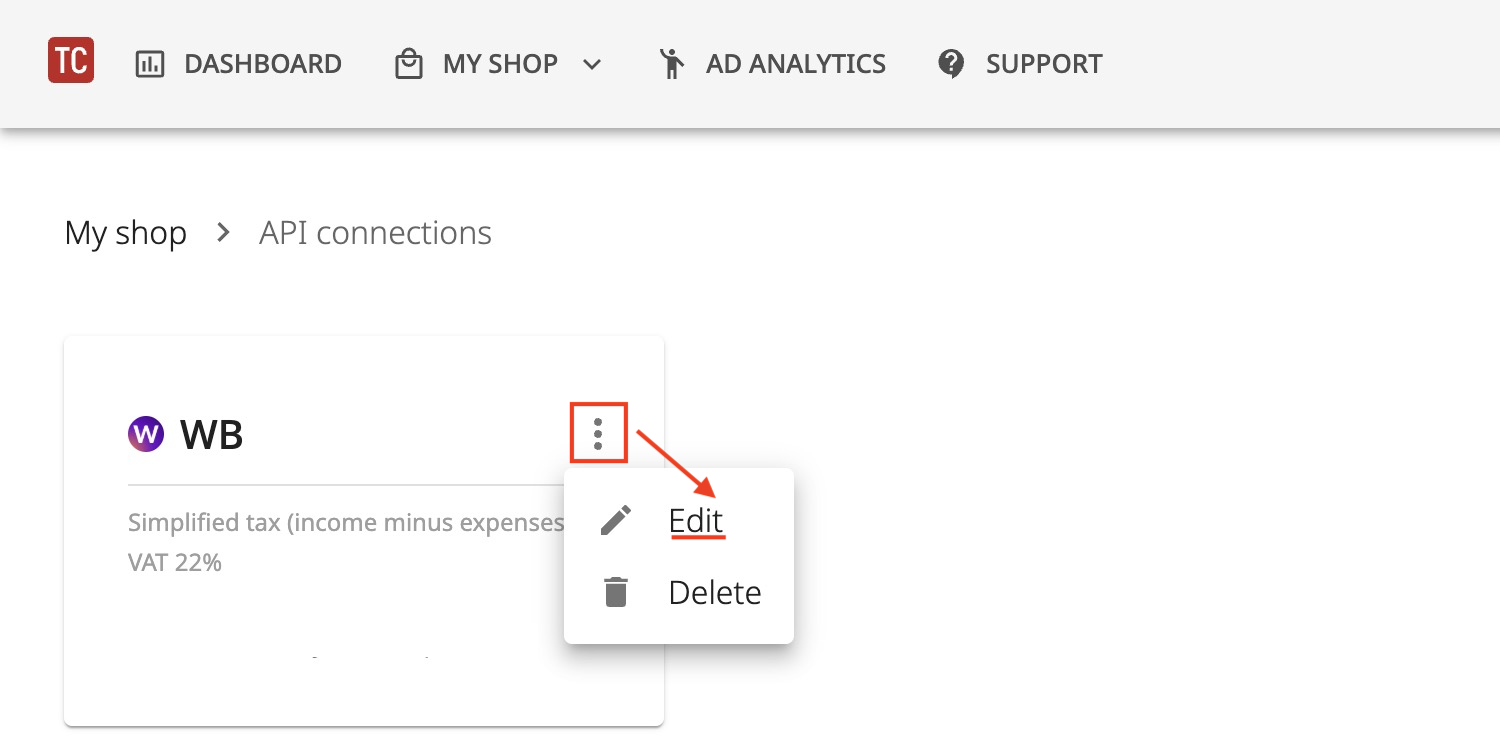
Tax is configured in the connection settings. My store — API connections — the "Three dots" menu — "Edit".
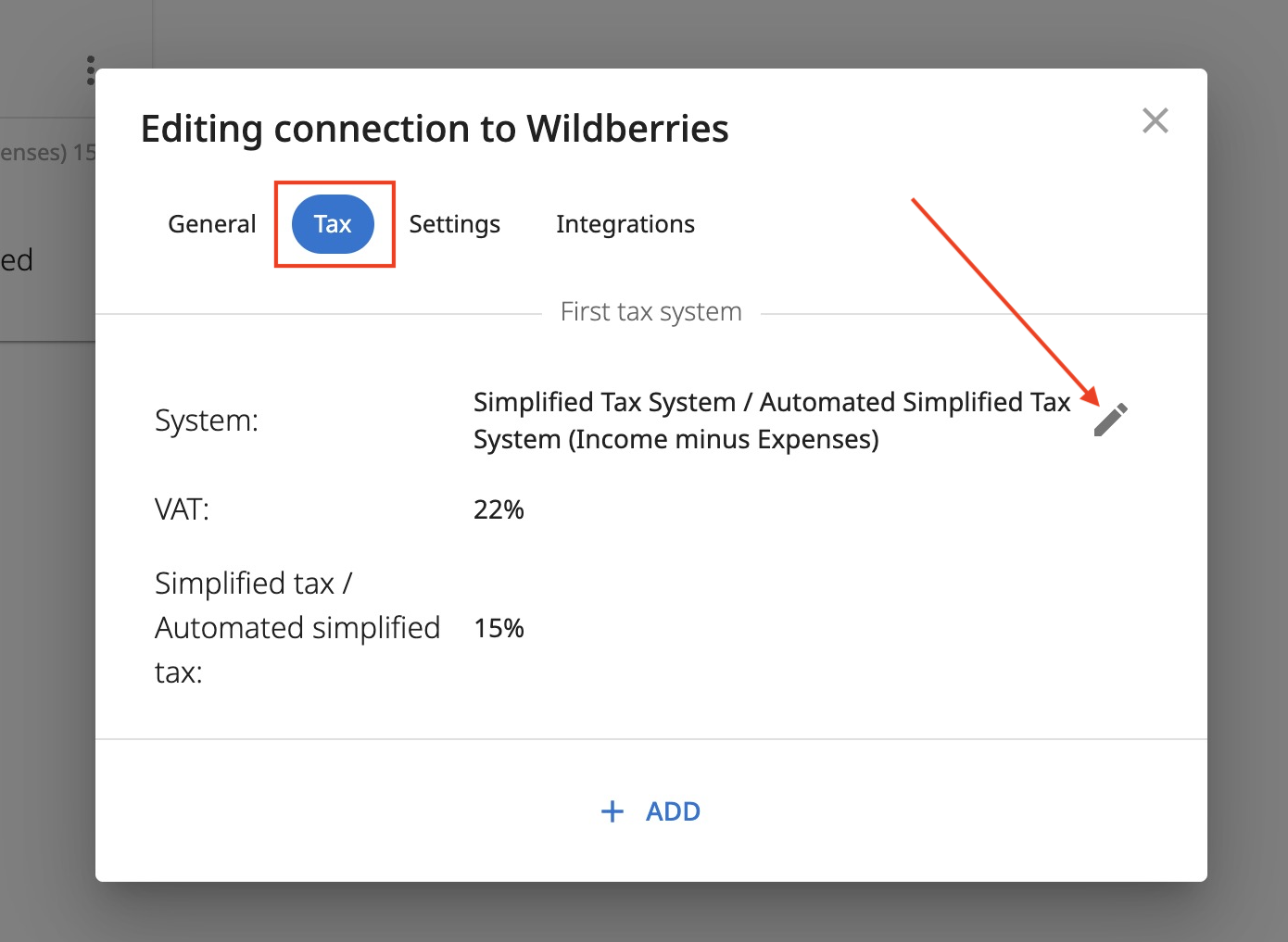
On the "Tax" tab, click "Edit" and select your tax system from the list:
STS / ASTS (Income)
STS / ASTS (Income minus Expenses)
GTS
Check that the VAT percentage is correct; if not, select a value from the list.
Check your tax rate. You can select a value from the list or enter your own — to do this, click the "enter manually" icon to the right of the tax rate list field. To prevent tax from being calculated at all, set it to zero.
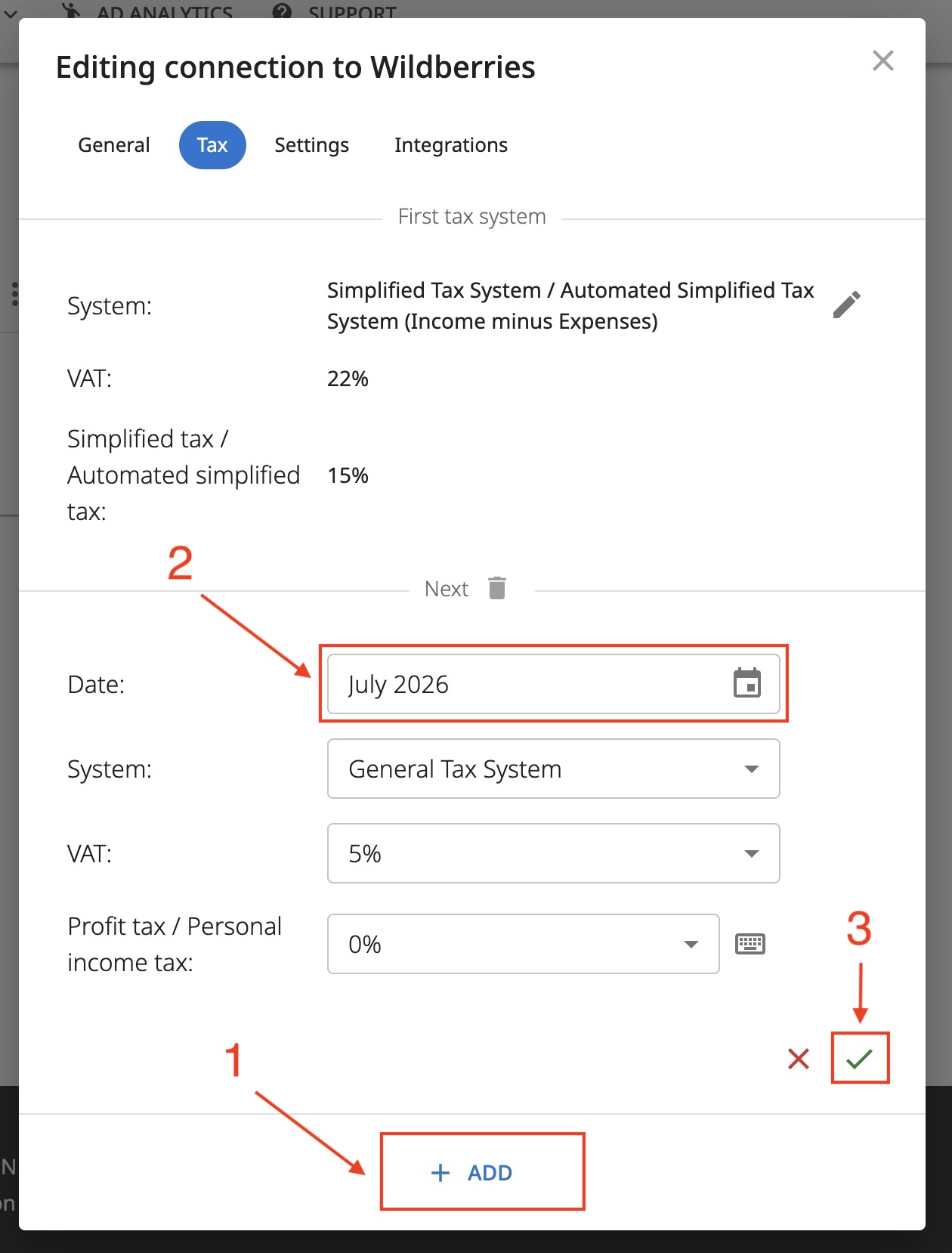
If the tax changed starting from a certain month, click "Add" and specify the new tax and the start date of its application.
What amount is used as the basis?
The basis for tax calculation is always the realized sales amount, that is, the amount on customer receipts (how much the customer paid for the product) + possible non-operating income (for example, marketplace compensation for lost or damaged goods).
Information on the tax authority website:
"The seller's income is recognized as the entire amount of receipts from the customer for goods sold to them through the marketplace." https://www.nalog.gov.ru/rn77/news/tax_doc_news/15047439/
"Thus, the seller's income is the entire amount of gross revenue from the sale of goods received to the intermediary's account under concluded commission agreements, agency agreements or other similar agreements" https://www.nalog.gov.ru/rn03/taxation/taxes/usn/15175263/
Marketplace instructions:
Yandex Market - https://yandex.ru/support/marketplace/ru/accounting/changes/operations/profit
Ozon - https://seller-edu.ozon.ru/finances-documents/additional-information/bally-za-skidki
Calculation examples
STS Income, 6%
Tax = Realized sales amount * 0.06
STS Income minus Expenses, 15%
Tax = (Realized sales amount - Marketplace services - Cost price) * 0.15 Marketplace services include everything that goes into the UPD. You enter the cost price yourself.
For Ozon, in this case we take as the basis the difference between gross revenue and variable expenses before deducting points, since via the API it is impossible to obtain the amount of services net of points. The difference between revenue and services before deducting points and co-investment will in any case be the same. A - B = (A - X) - (B - X)
STS Income, 6% + VAT 5%
Please note that the tax percentages do not add up! STS 6% + VAT 5% = this is not 11%, since VAT is always applied "on top".
First you need to calculate VAT = Realized sales amount * 5 / 105
Then find the basis for STS = Realized sales amount – VAT
And only then calculate the STS tax = STS basis * 0.06
VAT >= 10%
If VAT is 10% or more, then we start taking into account "input" VAT, which your supplier of goods or services reports to you in the invoice. Thus, you will need to pay not the entire VAT on your sales, but only the difference with the input VAT.
We (temporarily) assume that all services and cost price come with the same VAT as set in your connection. If your VAT = 10%, we will calculate input VAT at 10% as well. (we will clarify this soon and it will be possible to specify it manually).
Let's say your VAT = 20%. Then:
Output VAT = Realized sales amount * 20 / 120
Variable expenses = Marketplace services + Cost price
Input VAT = Variable expenses * 20 / 120
VAT = Input VAT - Output VAT
Please note: at this point VAT may be negative. This is an expected situation, although we do not recommend "showing" a negative to the tax authority.
Next, after calculating VAT, we calculate income tax for GTS, or the STS tax.
Basis for realized sales amount = Realized sales amount - Output VAT
Basis for variable expenses = Variable expenses - Input VAT
STS Income 6% + VAT 10% = VAT + Basis for realized sales amount * 6%
STS Income minus Expenses 15% + VAT 10% = VAT + (Basis for realized sales amount - Basis for variable expenses) * 15%
GTS, income tax
GTS with income tax is calculated similarly to the last example:
GTS VAT 20%, IT 25% = VAT + (Basis for realized sales amount - Basis for variable expenses) * 25%